test_scores <- c(10, 20, 30, 40, 50, 60, 70, 80, 90, 100)

class(test_scores)
[1] "numeric"– {{< include ./_extensions/r-wasm/live/_knitr.qmd >}}
Let’s talk a little bit about structures we can use to store data. These can be complex, so we will just talk about some basic ways in which we will be using them.
A vector is a 1-dimensional (row) structure that can hold multiple elements. For example, we can create a vector that contains 10 numbers such as this one :
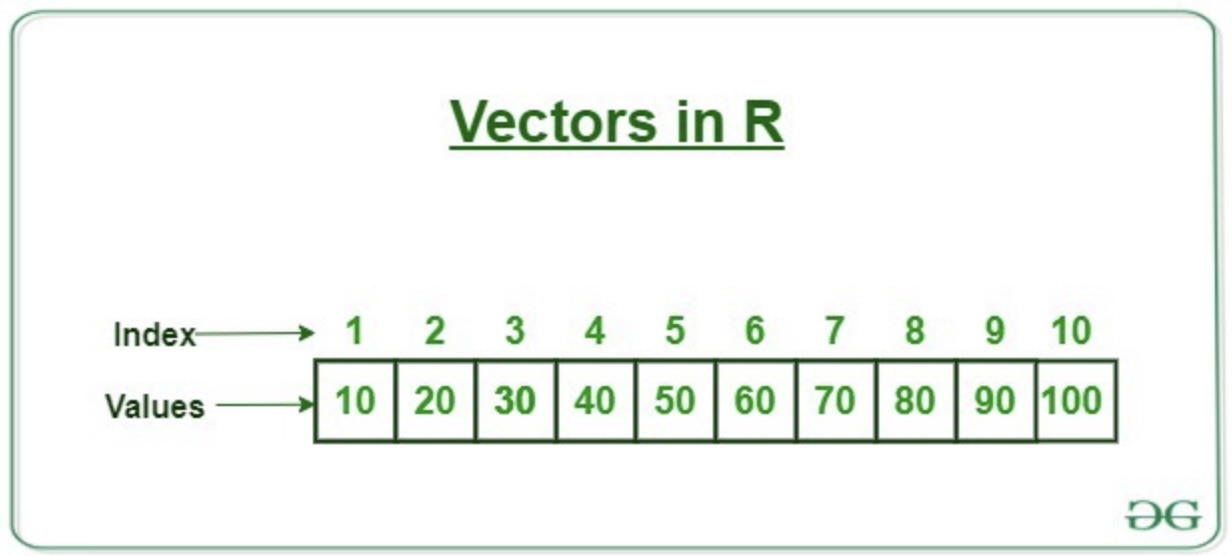
This example is a 1-dimensional vector that holds 10 values. You can see the values that we have saved are 10, 20, 30, 40, 50, 60, 70, 80, 90, and 100. The index tells us what position each value is in. The first value is at index 1, the second value is at index 2, and so on.
When creating a new vector, you want to make sure you are giving it a name that makes sense. For example, if you are creating a vector that holds the scores from a test, you might want to name it test_scores. This will help you remember what the vector is for when you are working with it later.
In order to create a vector, we can use the c() function. This function stands for “combine” and is used to combine multiple values into a single vector. For example, if we wanted to create a vector that holds the numbers from above, we could do it like this:
test_scores <- c(10, 20, 30, 40, 50, 60, 70, 80, 90, 100)
class(test_scores)[1] "numeric"Note : I used the class() function to check the type of the object. The output of this command is numeric. This tells us that the object is a numeric vector. This is because all of the values in the vector are numbers.
We can access the values by using the index. For example, if we wanted to access the first value in the vector, we could do it like this: test_scores[1]. This would return the value 10.
test_scores[1][1] 10If I wanted to examine the 4th - 7th entries, I could do it like this: test_scores[4:7]. This would return the values 40, 50, 60, 70.
test_scores[4:7][1] 40 50 60 70Note that we can’t just pick random locations in the vector. For example, if I wanted to print out the values in the 2nd, 5th, and 9th locations? The command test_scores[2, 5, 9] would not work. You would get an error message that stops your script.
Instead, we could create a vector that holds the locations we want to examine. For example, we could create a vector that holds the values 2, 5, 9 and use this vector in our command :
test_scores[c(2, 5, 9)][1] 20 50 90You can also create a vector that holds text values. For example, you could create a vector that holds the names of the students in a class. This would look something like this:
student_names <- c("Alice", "Bob", "Charlie", "David", "Eve", "Frank", "Grace", "Hannah", "Ivy", "Jack")

class(student_names)
[1] "character"Notice that this vector is of type character. This is because all of the values in the vector are text values. You can access the values in the same way as you would with a numeric vector. For example, if you wanted to access the first value in the vector, you could do it like this: student_names[1].
student_names[1][1] "Alice"We have seen two examples. The first was a vector that contained numeric values and the second was a vector that contained text values. You can also create a vector that contains a mix of both. For example, you could create a vector that contains the names of the students in a class along with their test scores. This would look something like this:
student_data <- c("Alice", 100, "Bob", 90, "Charlie", 80, "David", 70, "Eve", 60, "Frank", 50, "Grace", 40, "Hannah", 30, "Ivy", 20, "Jack", 10)When you create a vector that contains a mix of text and numeric values, you need to be careful.
When you create a vector that contains a mix of text and numeric values, R will convert the text values to a different type. For example, if you have a vector that contains both text and numeric values, the text values will be converted to a type called character. This is a type that is used to store text values. For example, if you have a vector that contains the values 10, 20, 30, "Alice", "Bob", the text values "Alice" and "Bob" will be converted to the type character. This is because R can’t store text values in a vector that is meant to hold numeric values.
class(student_data)[1] "character"If a vector contains text and numeric values, the text values will be converted to a different type. For example, if you have a vector that contains both text and numeric values, the text values will be converted to a type called character. This is a type that is used to store text values. For example, if you have a vector that contains the values 10, 20, 30, "Alice", "Bob", the text values "Alice" and "Bob" will be converted to the type character. This is because R can’t store text values in a vector that is meant to hold numeric values.
This can be problematic. For instance, what if we wanted to find the average of the test scores from the student_data vector? We would need to convert the text values to numeric values first. We can do this using the as.numeric() function. This function converts a vector to a numeric type. For example, if we wanted to convert the student_data vector to a numeric type, we could do it like this:
student_data <- as.numeric(student_data)Warning: NAs introduced by coercionstudent_data [1] NA 100 NA 90 NA 80 NA 70 NA 60 NA 50 NA 40 NA 30 NA 20 NA
[20] 10This is interesting because as we see the output, we get NA values. This is because the as.numeric() function can’t convert text values to numeric values. When it encounters a text value, it returns NA. This is a special value that is used to represent missing or undefined values. In this case, it is used to represent the text values that couldn’t be converted to numeric values.
So if we wanted to then find the average of the test scores, we could pull out the score sand save them into another vector. The test scores are in indices 2, 3, 6, 8, 10, 12, 14, 16, 18 and 20. We could save these into a new vector called test_scores2 and then find the average like this:
test_scores2 <- student_data[c(2, 4, 6, 8, 10, 12, 14, 16, 18, 20)]Let’s check the vector to make sure it is correct :
test_scores2 [1] 100 90 80 70 60 50 40 30 20 10We can now find the average using the mean() function. This function calculates the average of a vector. For example, if we wanted to find the average of the test scores, we could do it like this:
mean(test_scores2)[1] 55The reason why a vector is not useful here is because it is trying to save two different forms of data at once. We are trying to save text and numeric data in the same vector. This is not a good idea. Surely there is an easier way to store the data! That is where data frames come in.
A data frame is a 2-dimensional (row and column) structure that can hold multiple elements. It is similar to a matrix, but it can hold different types of data in each column. For example, you could create a data frame that holds the names of the students in a class along with their test scores. This would look something like this:
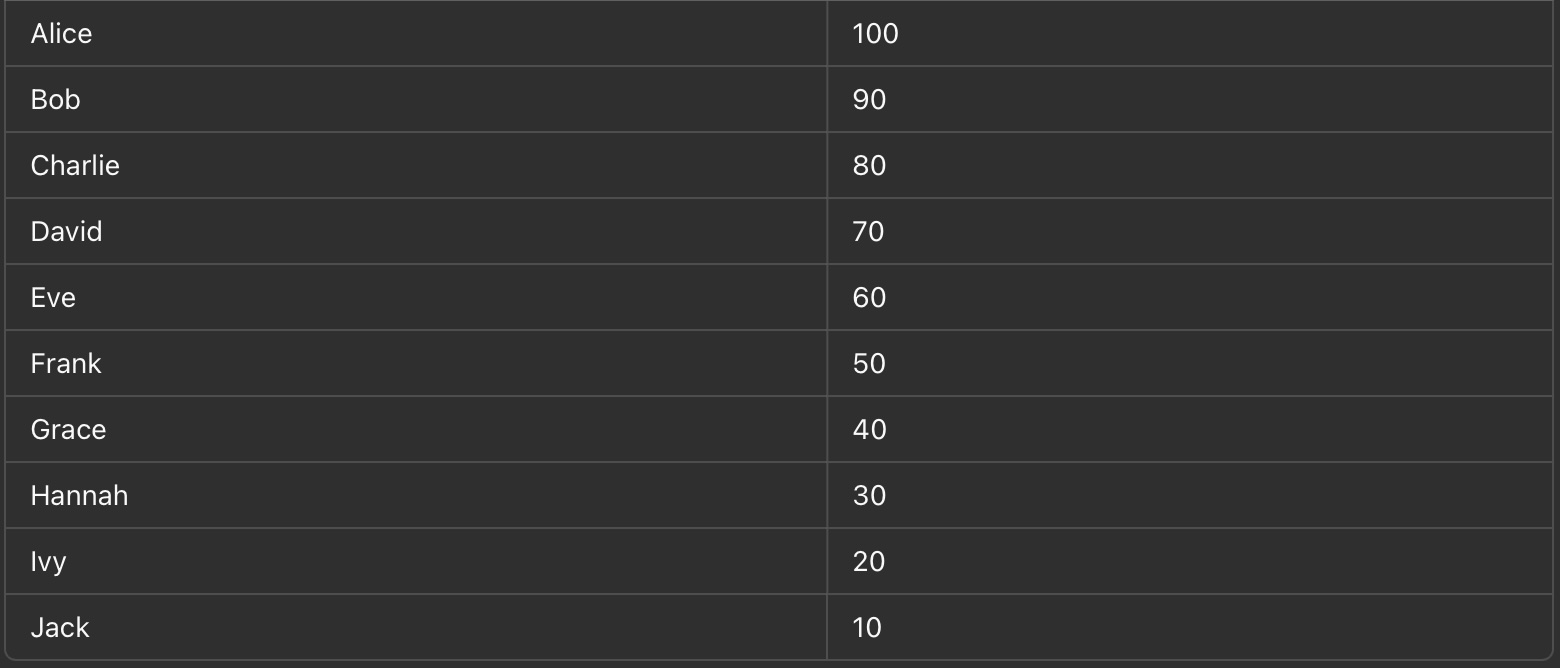
This example is a 2-dimensional data frame that holds 10 rows and 2 columns. This is an example of a data frame. In a data frame, each row is called an observation and each column is called a variable. This data frame has two variables: name and test_score. The name variable holds the names of the students in the class, while the test_score variable holds the test scores of the students.
When creating a new data frame, you want to make sure you are giving it a name that makes sense. For example, if you are creating a data frame that holds the names of the students in a class along with their test scores, you might want to name it student_data. This will help you remember what the data frame is for when you are working with it later.
In order to create a data frame, we can use the data.frame() function. This function is used to create a new data frame. For example, if we wanted to create a data frame that holds the names of the students in a class along with their test scores, we could do it like this:
student_data <- data.frame(
  name = c("Alice", "Bob", "Charlie", "David", "Eve", "Frank", "Grace", "Hannah", "Ivy", "Jack"),
  test_score = c(100, 90, 80, 70, 60, 50, 40, 30, 20, 10)
)

class(student_data)
[1] "data.frame"In this example, we are creating a data one column at a time. Since we named these columns as name and test_score, we can access the values in the same way as we would with a vector. For example, if we wanted to access the first value in the name column, we could do it like this: student_data$name[1]. This would return the value Alice.
student_data$name[1][1] "Alice"Similarly, if we wanted to access the first value in the test_score column, we could do it like this: student_data$test_score[1]. This would return the value 100.
student_data$test_score[1][1] 100We could also the value in the fifth row and second column like this:
student_data[5, 2][1] 60If we wanted to print out the entire first column, we could do it like this:
student_data$name [1] "Alice" "Bob" "Charlie" "David" "Eve" "Frank" "Grace"
[8] "Hannah" "Ivy" "Jack" If we wanted to print out the entire second column, we could do it like this:
student_data$test_score [1] 100 90 80 70 60 50 40 30 20 10What happens if we wanted to print out the entore data frame? We could do it like this:
student_data name test_score
1 Alice 100
2 Bob 90
3 Charlie 80
4 David 70
5 Eve 60
6 Frank 50
7 Grace 40
8 Hannah 30
9 Ivy 20
10 Jack 10These commands are nice, but if you have a large data set then just printing it off can be a bit overwhelming. We can use the head() function to print out the first few rows of the data frame. For example, if we wanted to print out the first 3 rows of the data frame, we could do it like this:
head(student_data, 3) name test_score
1 Alice 100
2 Bob 90
3 Charlie 80If we wanted to print out the last few rows of the data frame, we could use the tail() function. For example, if we wanted to print out the last 5 rows
tail(student_data, 5) name test_score
6 Frank 50
7 Grace 40
8 Hannah 30
9 Ivy 20
10 Jack 10The default amount of lines for head() and tail() is 6. If you don’t specify an amount of lines, it will print out 6 lines.
head(student_data) name test_score
1 Alice 100
2 Bob 90
3 Charlie 80
4 David 70
5 Eve 60
6 Frank 50How is a data frame different from a tibble? Let’s talk about that next.
A tibble is a modern version of a data frame that is part of the tidyverse. It is similar to a data frame, but it has some additional features that make it easier to work with. For example, tibbles have a nicer print method that makes it easier to view the data. They also have some additional functions that make it easier to manipulate the data. For example, you can use the select() function to select specific columns from a tibble. You can also use the filter() function to filter rows based on a condition. These functions make it easier to work with tibbles than with data frames.
In order to create a tibble, we can use the tibble() function. This function is used to create a new tibble. For example, if we wanted to create a tibble that holds the names of the students in a class along with their test scores, we could do it like this:
# Make sure tidyverse is installed and loaded up. Remember, if you
# need to install it, use the following :

# install.packages(tidyverse)
# If it is already downloaded, then you just need to load up the library :
library(tidyverse)Warning: package 'ggplot2' was built under R version 4.5.2── Attaching core tidyverse packages ──────────────────────── tidyverse 2.0.0 ──
✔ forcats 1.0.0 ✔ readr 2.1.5
✔ ggplot2 4.0.1 ✔ stringr 1.6.0
✔ lubridate 1.9.4 ✔ tibble 3.3.0
✔ purrr 1.2.0 ✔ tidyr 1.3.1
── Conflicts ────────────────────────────────────────── tidyverse_conflicts() ──
✖ dplyr::filter() masks stats::filter()
✖ dplyr::lag() masks stats::lag()
ℹ Use the conflicted package (<http://conflicted.r-lib.org/>) to force all conflicts to become errors# I have already installed the tibble package, so I will just load it up
library(tibble)
student_data2 <- tibble(
name = c("Alice", "Bob", "Charlie", "David", "Eve", "Frank", "Grace", "Hannah", "Ivy", "Jack"),
test_score = c(100, 90, 80, 70, 60, 50, 40, 30, 20, 10)
)
class(student_data2)[1] "tbl_df" "tbl" "data.frame"In this example, we are creating a tibble that is similar to the data frame we created earlier. The main difference is that this tibble is part of the tidyverse. This means that it has some additional features that make it easier to work with. For example, we can use the select() function to select specific columns from the tibble. For example, if we wanted to select the name column from the tibble, we could do it like this:
select(student_data2, name)# A tibble: 10 × 1
name
<chr>
1 Alice
2 Bob
3 Charlie
4 David
5 Eve
6 Frank
7 Grace
8 Hannah
9 Ivy
10 Jack If we wanted to select the test_score column from the tibble, we could do it like this:
select(student_data2, test_score)# A tibble: 10 × 1
test_score
<dbl>
1 100
2 90
3 80
4 70
5 60
6 50
7 40
8 30
9 20
10 10If I want all of the students that got higher than a 65 for their test score, I could use the filter() command to help us out. The filter() command needs two arguments. The first is the name of the tibble and the second is the condition that we want to filter on. For example, if we wanted to filter out all of the students that got higher than a 65 on their test, we could do it like this:
filter(student_data2, test_score > 65)# A tibble: 4 × 2
name test_score
<chr> <dbl>
1 Alice 100
2 Bob 90
3 Charlie 80
4 David 70Another advantage a tibble has over a data frame is that it is easier to work with when you are working with large data sets. For example, if you have a data set that has 1 million rows, it can be difficult to work with a data frame. This is because data frames are stored in memory, and if you have a large data set, it can take up a lot of memory. This can slow down your computer and make it difficult to work with the data. Tibbles are designed to be more memory efficient than data frames. This means that they can handle larger data sets more easily. This makes it easier to work with large data sets in R.
In conclusion, vectors, data frames, and tibbles are all useful structures that can be used to store data. Vectors are 1-dimensional structures that can hold multiple elements. Data frames are 2-dimensional structures that can hold multiple elements. Tibbles are a modern version of data frames that are part of the tidyverse. They have some additional features that make them easier to work with. All of these structures are useful for storing data in R, and you will likely use all of them at some point when working with data in R.
In this part of the assignment, you will practice creating different types of vectors in R and using common commands associated with them, such as determining their class. Each problem will involve creating a unique type of vector and performing specific operations.
Task: Create a numeric vector containing the first 10 positive integers and determine its class.
Steps:
Create a numeric vector called num_vector containing the numbers 1 to 10.
Determine the class of num_vector and save the result to the variable class_num_vector.
Check your work.
# Create numeric vector
num_vector <- c(1, 2, 3, 4, 5, 6, 7, 8, 9, 10)

# or

num_vector <- c(1:10)


# Determine the class of num_vector
class_num_vector <- class(num_vector)

num_vector
class_num_vector
Task: Create a character vector containing the names of the first five months of the year and determine its class.
Steps:
Create a character vector char_vector containing the names “January”, “February”, “March”, “April”, and “May”.
Determine the class of char_vector and save the result to the variable class_char_vector.
Check your work.
# Create character vector
char_vector <- c("January", "February", "March", "April", "May")

# Determine the class of the vector
class_char_vector <- class(char_vector)

# Check your work

char_vector
class_char_vector
Task: Create a logical vector containing alternating TRUE and FALSE values for a length of 8 and determine its class.
Steps:
Create a logical vector log_vector with 8 terms alternating TRUE and FALSE values.
Determine the class of the vector and save the result to the variable class_log_vector.
Check your work.
# Create logical vector
log_vector <- c(TRUE, FALSE, TRUE, FALSE, TRUE, FALSE, TRUE, FALSE)

# Determine the class of the vector
class_log_vector <- class(log_vector)

# Check your work

log_vector

class_log_vector
Task: Create a factor vector from a character vector containing three levels: “High”, “Medium”, and “Low”, and determine its class.
Steps:
char_levels with the 5 values “High”, “Medium”, “Low”, “High”, “Low”.factor command, convert this character vector into a factor vector called fact_vector with levels “Low”, “Medium” and “High”.fact_vector and save the result to the variable class_fact_vector.
# Create character vector with levels

char_levels <- c("High", "Medium", "Low", "High", "Low")

# Convert to factor vector

fact_vector <- factor(char_levels, levels = c("Low", "Medium", "High"))

# Determine the class of the factor vector

class_fact_vector <- class(fact_vector)

# Check your work

fact_vector

class_fact_vector
Task: Create a complex vector containing the first four complex numbers with real and imaginary parts, and determine its class.
Steps:
comp_vector with values 1+2i, 3+4i, 5+6i, 7+8i.class_comp_vector.
# Create complex vector

comp_vector <- c(1+2i, 3+4i, 5+6i, 7+8i)

# Determine the class of the vector

class_comp_vector <- class(comp_vector)

# Check your work

comp_vector

class_comp_vector
In this part of the assignment, you will practice creating different types of data frames in R and using common commands associated with them, such as pulling out values, and using head() and tail() functions. Each problem will involve creating a unique type of data frame and performing specific operations.
Task: Create a data frame containing the names and scores of five students in a math test. Use commands to pull out specific values and display the first few rows of the data frame.
Steps:
students_df with columns Name and Score. Use the following:
alice_score where you pull out the score of the student named “Alice”.students_df into the variable ’head_students_df`
# Create data frame

students_df <- data.frame(
  Name = c("Alice", "Bob", "Charlie", "David", "Eve"),
  Score = c(85, 90, 78, 92, 88)
)

# Pull out the score of Alice

alice_score <- students_df$Score[students_df$Name == "Alice"]

# Display the first three rows of the data frame

head_students_df <- head(students_df, 3)

# Check your work

students_df

alice_score

head_students_df
Task: Create a data frame containing the monthly expenses for three categories (Rent, Food, Utilities) over six months. Use commands to pull out specific values and display the last few rows of the data frame.
Steps:
expenses_df with columns Month, Rent, Food, and Utilities.
march_food_expense.tail() and save it to the variable tail_expenses_df.
# Create data frame

expenses_df <- data.frame(
  Month = c("January", "February", "March", "April", "May", "June"),
  Rent = c(1000, 1000, 1000, 1000, 1000, 1000),
  Food = c(300, 320, 310, 330, 340, 350),
  Utilities = c(150, 160, 155, 165, 170, 175)
)

# Pull out the food expense for March

march_food_expense <- expenses_df$Food[expenses_df$Month == "March"]

# Display the last two rows of the data frame

tail_expenses_df <- tail(expenses_df, 2)

# Check your work

expenses_df

march_food_expense

tail_expenses_df
Task: Create a data frame containing the employee information (ID, Name, Department, Salary). Use commands to pull out specific values and display the first few rows of the data frame.
Steps:
employee_df with columns ID, Name, Department, and Salary.
dept_id_1003.head() and save it to the variable head_employee_df.
# Create data frame

employee_df <- data.frame(
  ID = c(1001, 1002, 1003, 1004, 1005),
  Name = c("John", "Jane", "Doe", "Smith", "Emily"),
  Department = c("HR", "Finance", "IT", "Marketing", "Admin"),
  Salary = c(50000, 60000, 55000, 70000, 65000)
)

# Pull out the department of the employee with ID 1003

dept_id_3 <- employee_df$Department[employee_df$ID == 1003]

# Display the first four rows of the data frame

head_employee_df <- head(employee_df, 4)

# Check your work

employee_df

dept_id_3

head_employee_df
Task: Create a data frame containing the product sales information (ProductID, ProductName, UnitsSold, Revenue). Use commands to pull out specific values and display the last few rows of the data frame.
Steps:
sales_df with columns ProductID, ProductName, UnitsSold, and Revenue.
tablet_revenue.tail() and save it to the variable tail_sales_df.
# Create data frame
sales_df <- data.frame(
  ProductID = c(101, 102, 103, 104, 105),
  ProductName = c("Laptop", "Tablet", "Smartphone", "Desktop", "Monitor"),
  UnitsSold = c(50, 100, 200, 30, 80),
  Revenue = c(50000, 30000, 40000, 15000, 20000)
)

# Pull out the revenue of the product named Tablet
tablet_revenue <- sales_df$Revenue[sales_df$ProductName == "Tablet"]

# Display the last three rows of the data frame
tail_sales_df <- tail(sales_df, 3)

# Check your work

sales_df

tablet_revenue

tail_sales_df
Task: Create a data frame containing the weather data (Day, Temperature, Humidity, WindSpeed). Use commands to pull out specific values and display the first and last few rows of the data frame.
Steps:
weather_df with columns Day, Temperature, Humidity, and WindSpeed.
temp_day_5.head() and tail() and save them to the variables head_weather_df and tail_weather_df.
# Create data frame

weather_df <- data.frame(
  Day = 1:10,
  Temperature = c(25, 27, 24, 26, 28, 29, 30, 31, 32, 33),
  Humidity = c(80, 82, 78, 76, 79, 81, 83, 85, 84, 86),
  WindSpeed = c(10, 12, 11, 13, 14, 15, 16, 17, 18, 19)
)

# Pull out the temperature on the 5th day

temp_day_5 <- weather_df$Temperature[weather_df$Day == 5]

# Display the first two rows of the data frame

head_weather_df <- head(weather_df, 2)

# Display the last two rows of the data frame

tail_weather_df <- tail(weather_df, 2)

# Check your work

weather_df

temp_day_5

head_weather_df

tail_weather_df
In this part of the assignment, you will practice creating different types of tibbles in R and using common commands associated with them, such as creating a tibble, converting a data frame to a tibble, selecting columns, and filtering rows. Each problem will involve creating or manipulating tibbles and performing specific operations.
Task: Create a tibble containing the names and scores of five students in a math test. Use commands to select specific columns and display the tibble.
Steps:
students_tbl with columns Name and Score.
Name column from the tibble and save it to the variable name_column.students_tbl and the selected column name_column.# Load the tibble package, if needed
# library(tibble)
# Create tibble
students_tbl <- tibble(
Name = c("Alice", "Bob", "Charlie", "David", "Eve"),
Score = c(85, 90, 78, 92, 88)
)
# Select the Name column
name_column <- select(students_tbl, Name)
# Display the tibble
students_tbl
# Display the name column
name_column
Task: Create a data frame containing the monthly expenses for three categories (Rent, Food, Utilities) over six months and convert it to a tibble. Use commands to filter specific rows and display the tibble.
Steps:
expenses_df with columns Month, Rent, Food, and Utilities.
expenses_tbl.Rent is greater than 1000 and save it to the variable filtered_expenses_tbl.# Create data frame
expenses_df <- data.frame(
Month = c("January", "February", "March", "April", "May", "June"),
Rent = c(1000, 1000, 1000, 1000, 1000, 1000),
Food = c(300, 320, 310, 330, 340, 350),
Utilities = c(150, 160, 155, 165, 170, 175)
)
# Convert data frame to tibble
expenses_tbl <- as_tibble(expenses_df)
# Filter the tibble
filtered_expenses_tbl <- filter(expenses_tbl, Rent > 1000)
# Display the tibbles
expenses_tbl
filtered_expenses_tbl
Task: Create a tibble containing the employee information (ID, Name, Department, Salary). Use commands to select specific columns and display the tibble.
Steps:
employee_tbl with columns ID, Name, Department, and Salary.
Name and Salary columns from the tibble.# Load the tibble package, if needed
# library(tibble)
# Create tibble
employee_tbl <- tibble(
ID = c(1, 2, 3, 4, 5),
Name = c("John", "Jane", "Doe", "Smith", "Emily"),
Department = c("HR", "Finance", "IT", "Marketing", "Admin"),
Salary = c(50000, 60000, 55000, 70000, 65000)
)
# Select the Name and Salary columns
name_salary_columns <- select(employee_tbl, Name, Salary)
# Display the tibble
employee_tbl
name_salary_columns
Task: Create a tibble containing the product sales information (ProductID, ProductName, UnitsSold, Revenue). Use commands to filter specific rows and display the tibble.
Steps:
sales_tbl with columns ProductID, ProductName, UnitsSold, and Revenue.
UnitsSold is greater than 50 and save it to the variable filtered_sales_tbl.sales_tbl and the filtered tibble filtered_sales_tbl.# Create tibble
sales_tbl <- tibble(
ProductID = c(101, 102, 103, 104, 105),
ProductName = c("Laptop", "Tablet", "Smartphone", "Desktop", "Monitor"),
UnitsSold = c(50, 100, 200, 30, 80),
Revenue = c(50000, 30000, 40000, 15000, 20000)
)
# Filter the tibble
filtered_sales_tbl <- filter(sales_tbl, UnitsSold > 50)
# Display the tibble
sales_tbl
filtered_sales_tbl
head() and tail()Task: Create a tibble containing the weather data (Day, Temperature, Humidity, WindSpeed). Use commands to display the first and last few rows of the tibble.
Steps:
weather_tbl with columns Day, Temperature, Humidity, and WindSpeed.
head() and save it to the variable head_weather_tbl.tail() and save it to the variable tail_weather_tbl.# Create tibble
weather_tbl <- tibble(
Day = 1:10,
Temperature = c(25, 27, 24, 26, 28, 29, 30, 31, 32, 33),
Humidity = c(80, 82, 78, 76, 79, 81, 83, 85, 84, 86),
WindSpeed = c(10, 12, 11, 13, 14, 15, 16, 17, 18, 19)
)
# Display the first three rows of the tibble
head_weather_tbl <- head(weather_tbl, 3)
# Display the last three rows of the tibble
tail_weather_tbl <- tail(weather_tbl, 3)
weather_tbl
head_weather_tbl
tail_weather_tbl
Task: Install the database Star Wars data set and load it into a data frame called starwars_DF. Use commands to find the number of rows in the data frame.
Steps:
Install the Star Wars database package and load it into a data frame called starwars_DF.
Use two different methods for finding the number of rows in your data frame. What does this represent?
# The number of rows in the data frame represents the number of observations
# or records in the dataset.

# You can use the nrow() function to find the number of rows in the data frame.

nrow(starwars_DF)

# You can also use the dim() function to find the number of rows and columns
# in the data frame.

dim(starwars_DF)
Task: Using starwars_DF, find the number of columns in the data frame.
# You can use the `dim()` function to find the number of rows and columns in a data frame.

dim(starwars_DF)

# You can use the `ncol()` function to find the number of columns in a data frame.

ncol(starwars_DF)
Task: Using starwars_DF, find the variable names in the data frame. Use the names() and colnames() commands to list off the variable names in the data frame?
# names() can be used to list off the variable names in a data frame.

names(starwars_DF)

# colnames() can also be used to list off the variable names in a data frame.

colnames(starwars_DF)Task: Using starwars_DF, pull out the “height” variable and save it to a new variable called SW_height. Use three different methods to do this. How many values are listed? Does this raise any concerns?
Steps:
$ operator to pull out the “height” variable and save it to SW_height.[,] operator to pull out the “height” variable and save it to SW_height_2.[[ ]] operator to pull out the “height” variable and save it to SW_height_3.SW_height to see how many values are listed.How many values are listed? Does this raise any concerns?
# We want to pull out the "height" variable. Carry out two different commands that will pull out this information and save it to a new variable called SW_height. How many values are listed? Does this raise any concerns?

SW_height <- starwars_DF$height

SW_height_2 <- starwars_DF[,2]

SW_height_3 <- starwars_DF[["height"]]

length(SW_height)Task: Check the new variable SW_height to see if there might be any errors in the data.
** Steps:**
Print out the new variable SW_height to see if there are any errors in the data.
Do all of the observations have a value for height? If not, how many are missing and who are they missing from? We can use the is.na() function to check for missing values.
Print out the number of missing values in the height variable using the sum() function.
# Check the new variable SW_height to see if there might be any errors in the data.

print(SW_height)

# Check if there are any missing values in the height variable

missing_values <- is.na(SW_height)

# Print out the number of missing values in the height variable

missing_count <- sum(missing_values)

print(missing_count)Task: Using SW_height, print out the heights from smallest to largest. Also save the sorted list to a new variable called SW_height_sorted_1.
Steps:
Use the sort() function to sort the heights from smallest to largest and save it to SW_height_sorted_1.
Print out the sorted heights.
# Print out the heights from smallest to largest

SW_height_sorted_1 <- sort(SW_height)

# Check your work

print(SW_height_sorted_1)Task: Using SW_height, print out the heights from largest to smallest. Also save the sorted list to a new variable called SW_height_sorted_2.
Steps:
Use the sort help file to see how to sort the values from largest to smallest.
Print out the heights from largest to smallest and save new sorted list to SW_height_sorted_2
# Print out the heights from largest to smallest

SW_height_sorted_2 <- sort(SW_height, decreasing = TRUE)

# Check your work

print(SW_height_sorted_2)Task: Using SW_height, find the maximum value of the height variable. Use two different methods to do this and save the value to a new variable called SW_max_height and SW_max_height_2.
Steps:
Use the max() function to find the maximum value of the height variable and save it to SW_max_height.
Use the sort() function to sort the data where the maximum value is first and save the sorted list to SW_max_height_sorted. The largest value should be the first value in the sorted list. Save that value to SW_max_height_2.